|
When you create a supplier, you have the option of typing all the supplier's address details in or using the address that Google prompts when you start typing. If you select Google's suggestion, the address as well as the GPS coordinates (latitude and longitude) for that location are recorded. With these coordinates in the system, your Field users can quickly locate their nearest outlet. Watch the video to learn more. |
|
Search for a Supplier via GPS
GPS coordinates
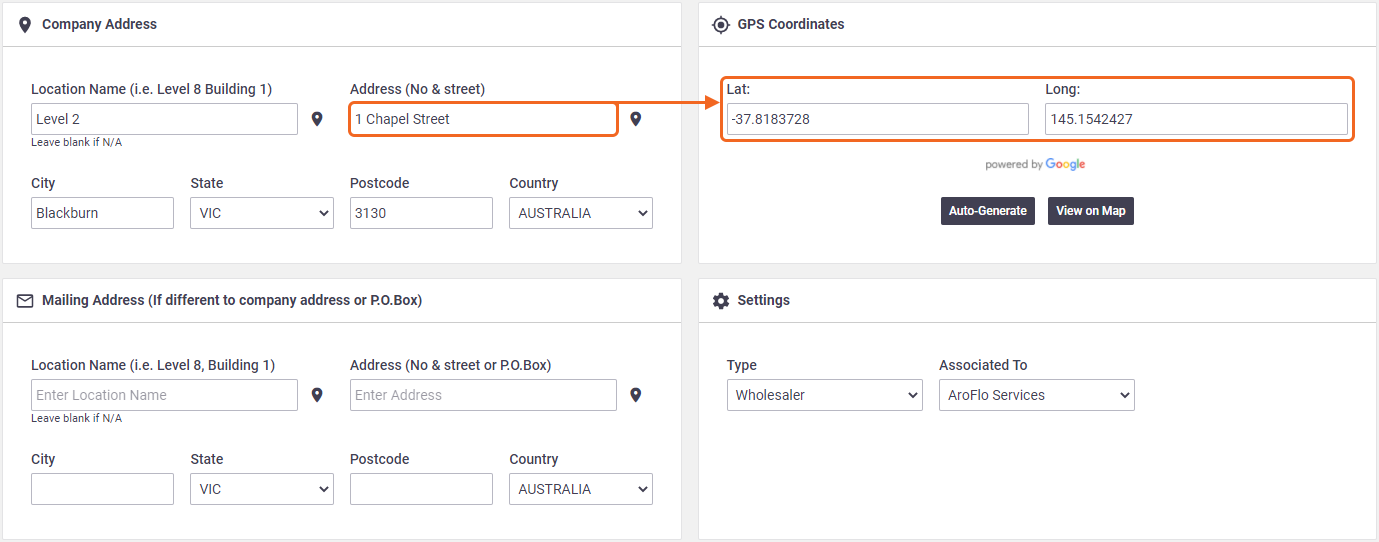
For this feature to work, you must have GPS coordinates entered on your supplier cards.
In this example, Google has found matching coordinates for '1 Chapel Street, Blackburn, VIC' so 'Level 2' has been manually typed into the 'Location Name' field.
You can either find your closest supplier to your location, or you can do this while creating a purchase order:
Find closest Supplier
|
To find your closest supplier to your location (e.g. if you urgently need materials):
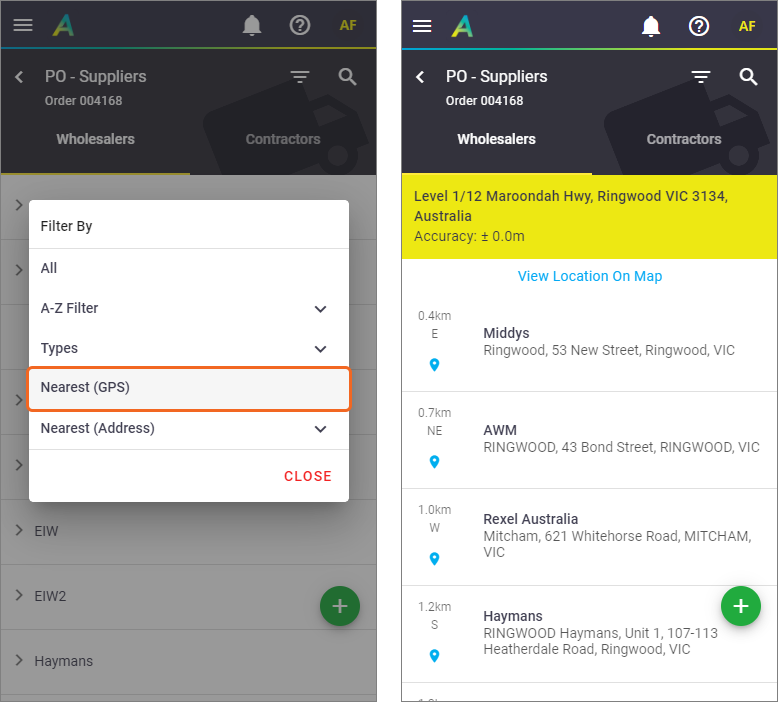
If you have GPS Coordinates loaded against your suppliers as described above, AroFlo Field will use your position to find the nearest suppliers, sorted by distance. From here you can tap:
|
 |
|
 > Manage > Suppliers
 (filter) > Nearest (GPS).
 (blue location pin) to navigate to the supplier's location using your device's maps application.
When creating a Purchase Order
|
From Menu
Tap the |
 |
|
 (green plus).